Put a drifted point back on the joint
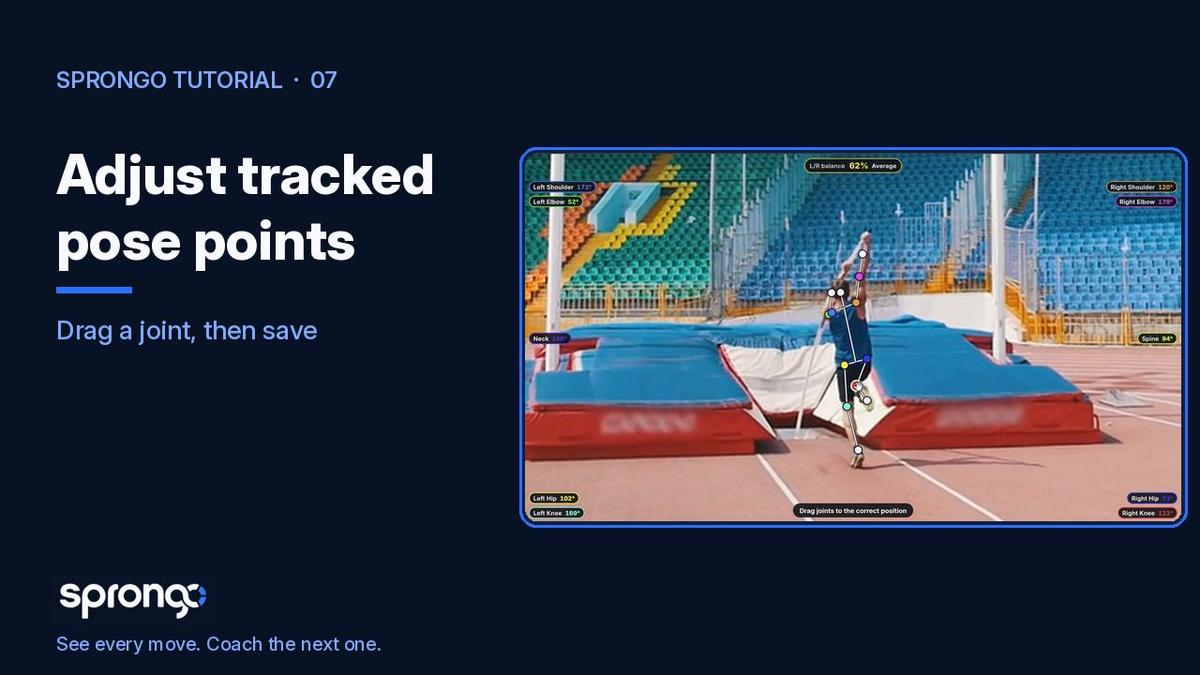
Pose tracking in Sprongo follows the athlete through the clip, but a point can land slightly off a hip, a knee, or a wrist, especially if the body is turned, obscured, or moving quickly. When that happens, you can open pose editing, drag the joint to the right place, and save.
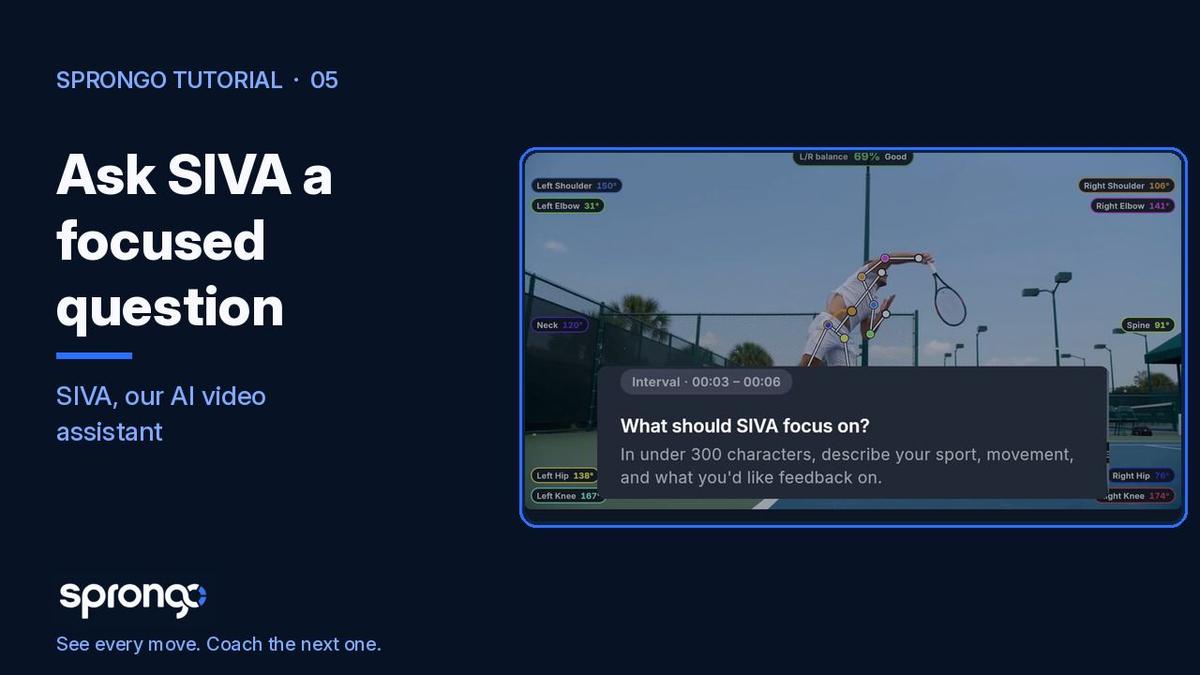
Why it matters: joint angles, the timeline graph, and SIVA, Sprongo's AI video assistant, all read from the points on the body. If a knee point is sitting on the ski, or a shoulder point has drifted off the arm, the picture will mislead you. A short correction before you review the frame — or before you ask SIVA about it — keeps the feedback attached to the real movement.
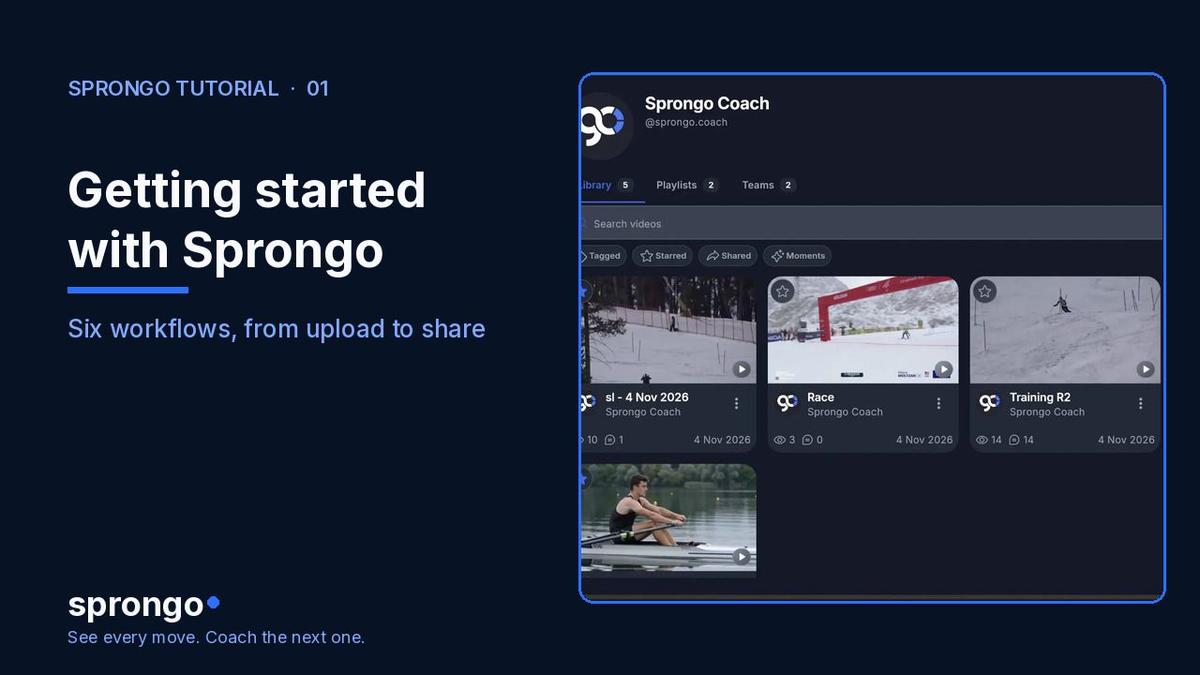
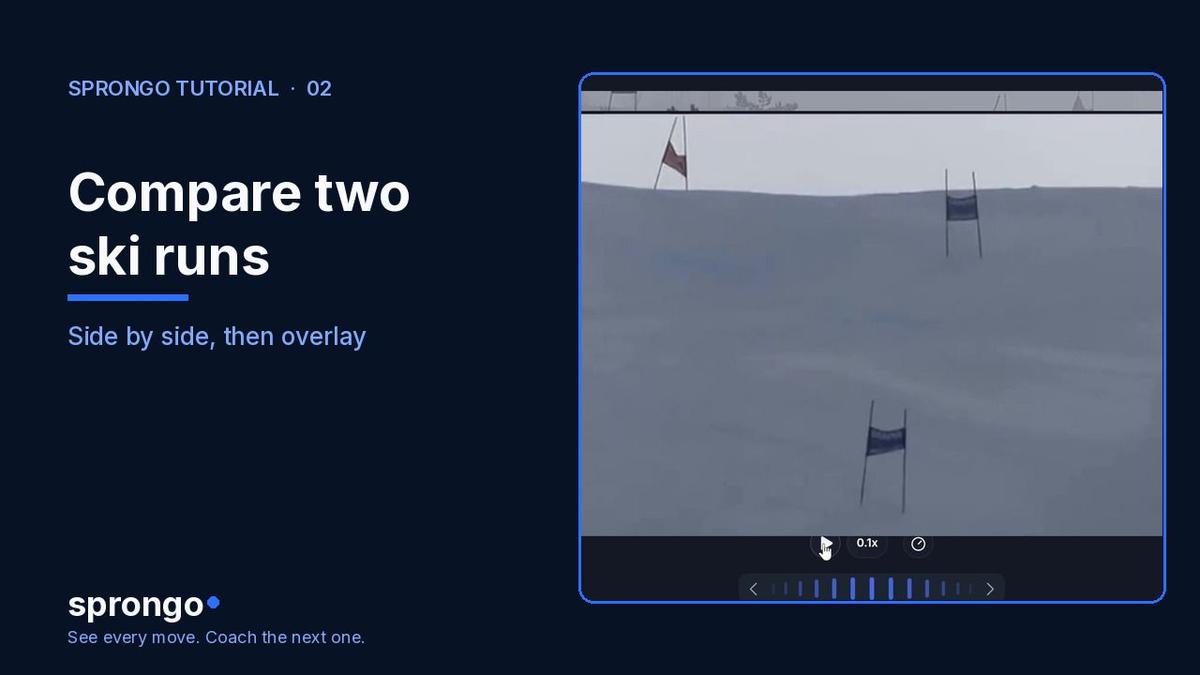
This sits alongside How to track movement through a ski run and the SIVA how-tos in Getting started with Sprongo: six workflows.
How to adjust a tracked point
- Open the clip and open pose editing. You'll see the tracked joints on the athlete.
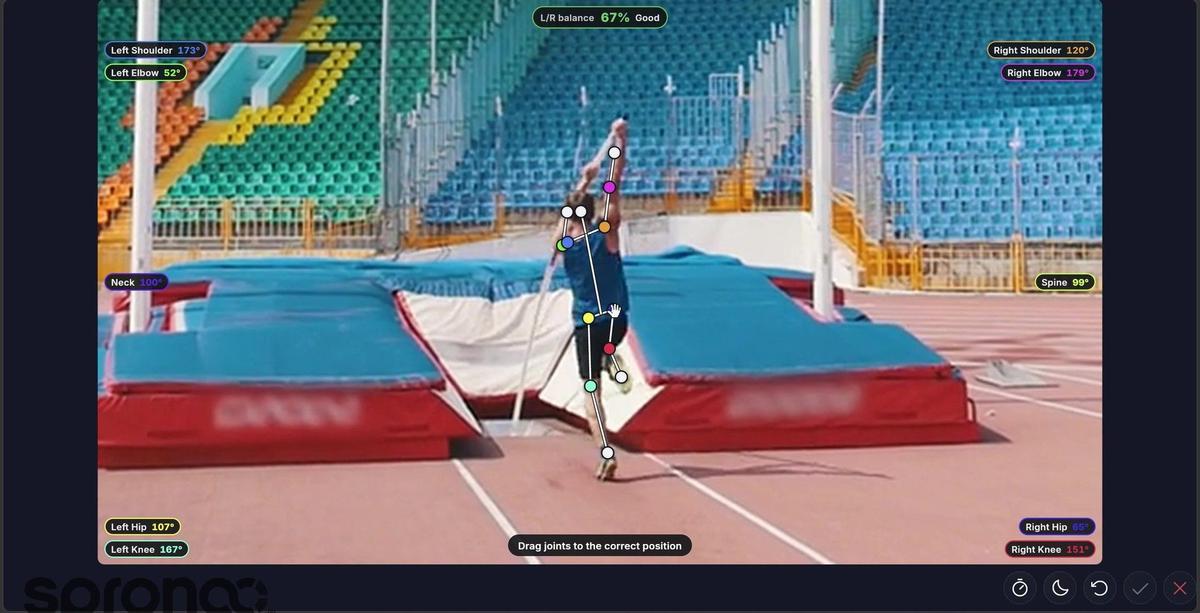
- Drag the joint that is in the wrong spot to the right position on the body. The angles update as you move it, so you can see the reading change with the point.
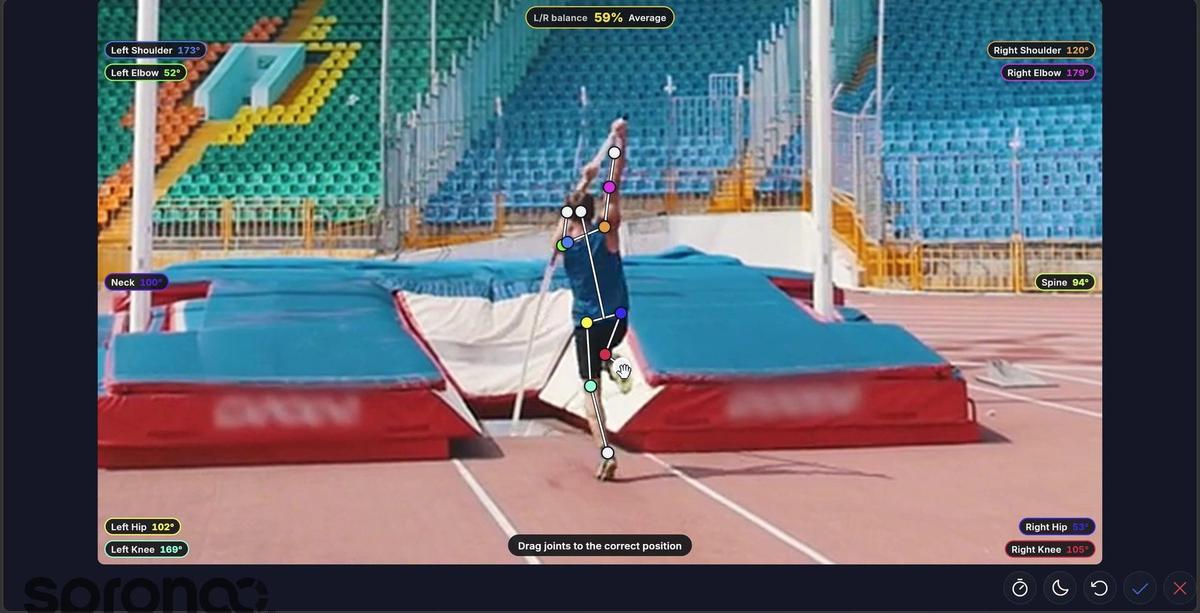
- Save the correction. You should see confirmation that the joints were saved. Then return to your review, or continue with a SIVA question on that moment.
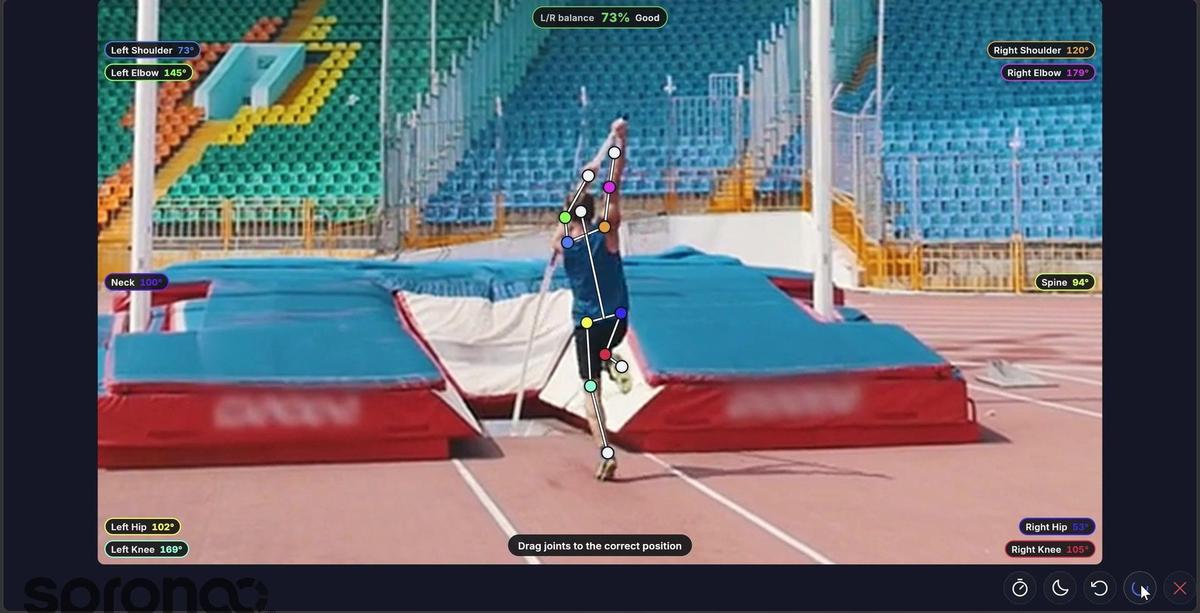
You don't need to edit every point. Fix the ones that are clearly off, especially on the joint you were about to talk about or ask SIVA about.
Frequently asked questions
When should I adjust a point? When a joint is clearly off the body on the frame you care about. Small, obvious corrections are worth it. Rebuilding an entire skeleton by hand usually isn't.
Do the angles update while I drag? Yes. In the 2.0 recording, the angle readings change as you move the point, which is a useful check that you have placed it on the joint you meant.
Do I have to save? Yes. Save so the correction sticks when you leave pose editing, scrub the clip, or ask SIVA about that moment.
Related guides
Getting started with Sprongo: six workflows · How to track movement through a ski run · How to select a moment for SIVA · How to review SIVA's feedback
Fix the point, then keep reviewing
Drag the joint that is off, save it, and go back to the cue you were about to give.