Check the answer against the video
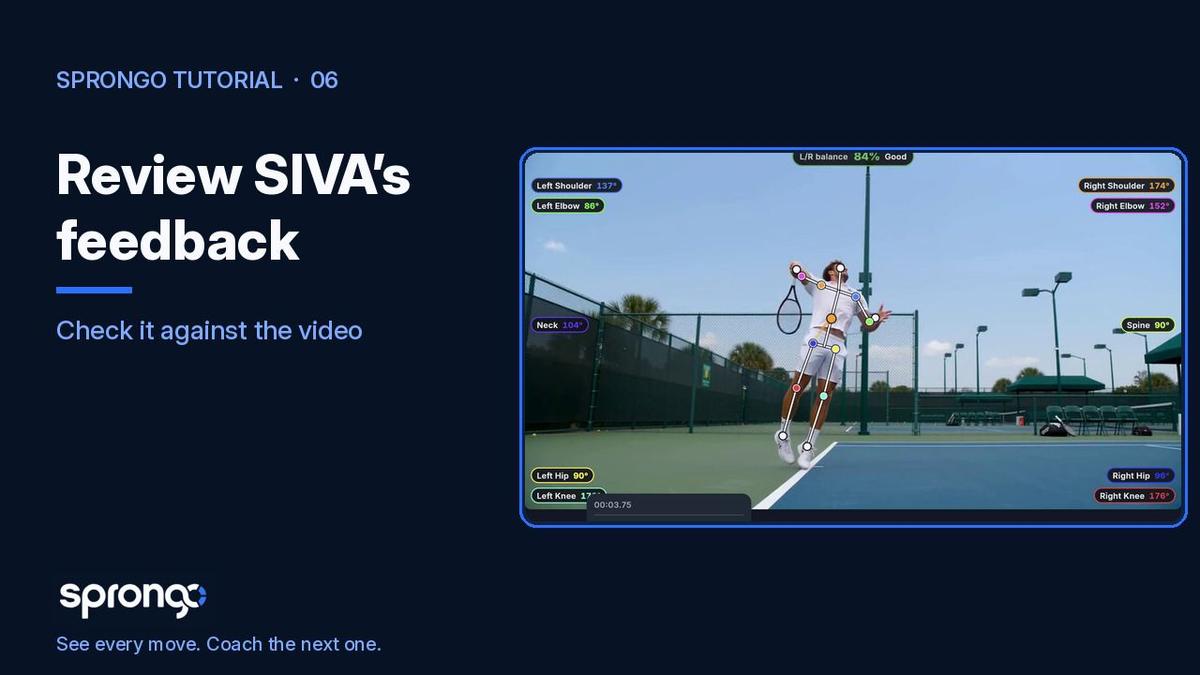
When SIVA, Sprongo's AI video assistant, finishes a question, the feedback appears next to the tracked video. The useful habit is not to copy the answer into a message right away. Step to the moment it refers to, watch that phase, and decide whether you agree before you share it.
Why it matters: SIVA (Sprongo Intelligent Video Analytics) is Sprongo's AI feedback feature. It reads the movement in the clip you selected and suggests a next focus. It does not replace a coach, and it does not see anything that was out of frame or poorly lit. Checking the answer against the picture is how you keep coaching judgment in charge, and how you avoid passing on a cue that doesn't match what you see.
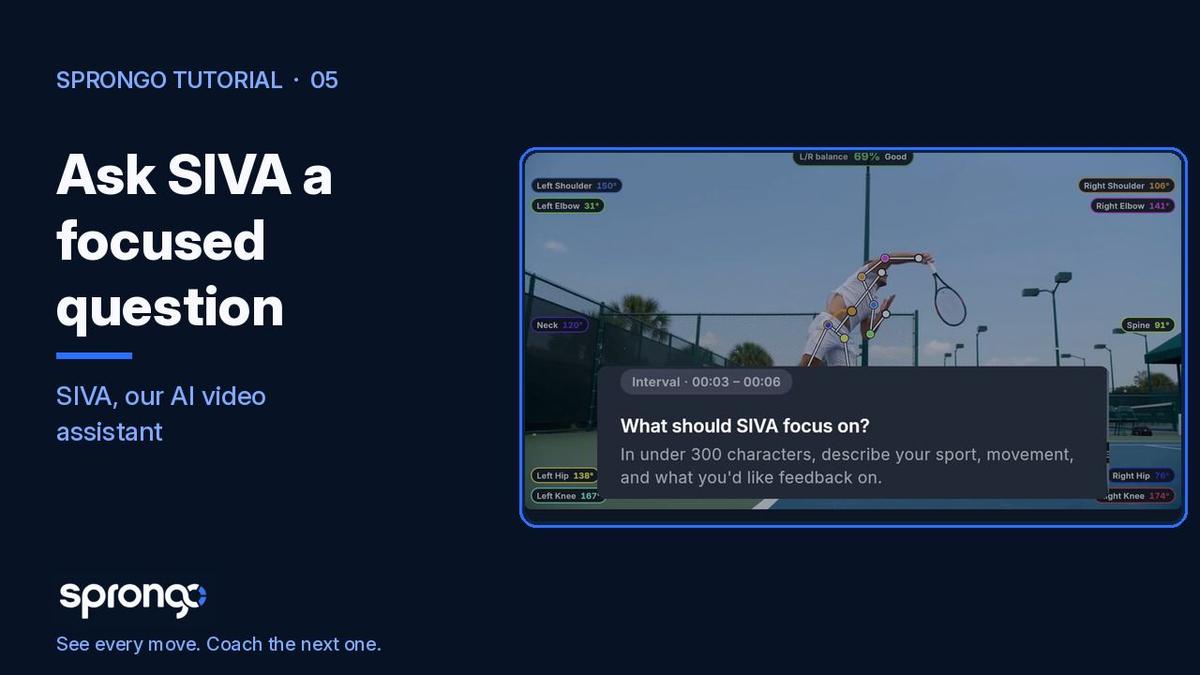
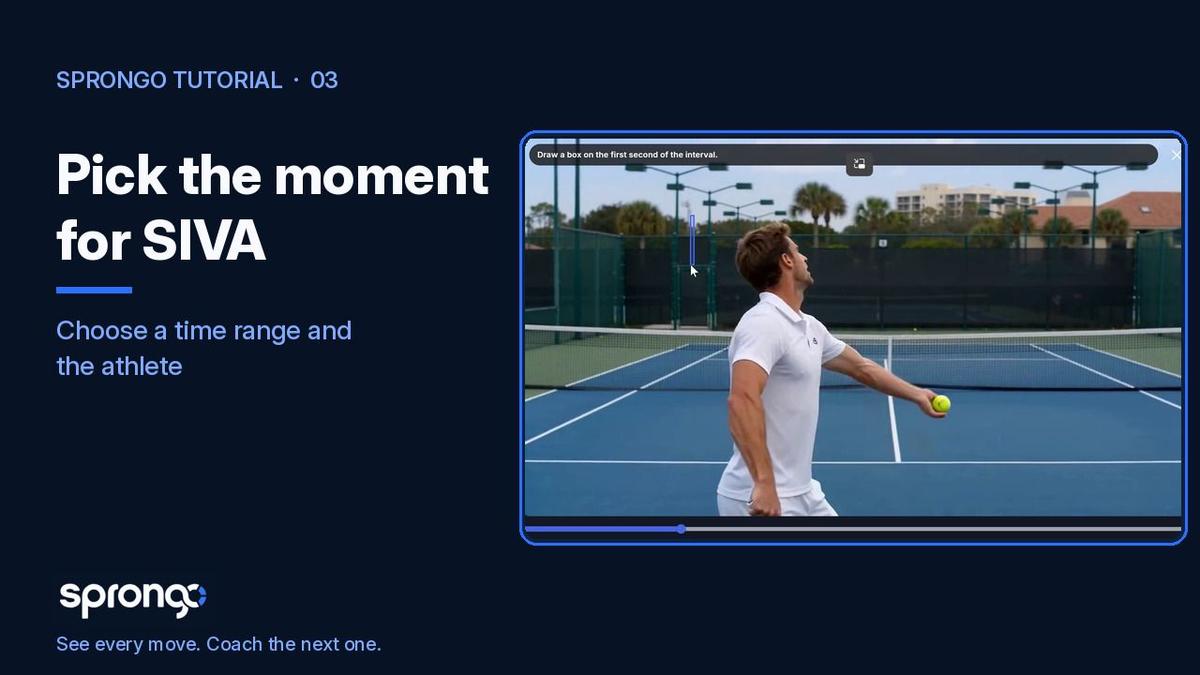
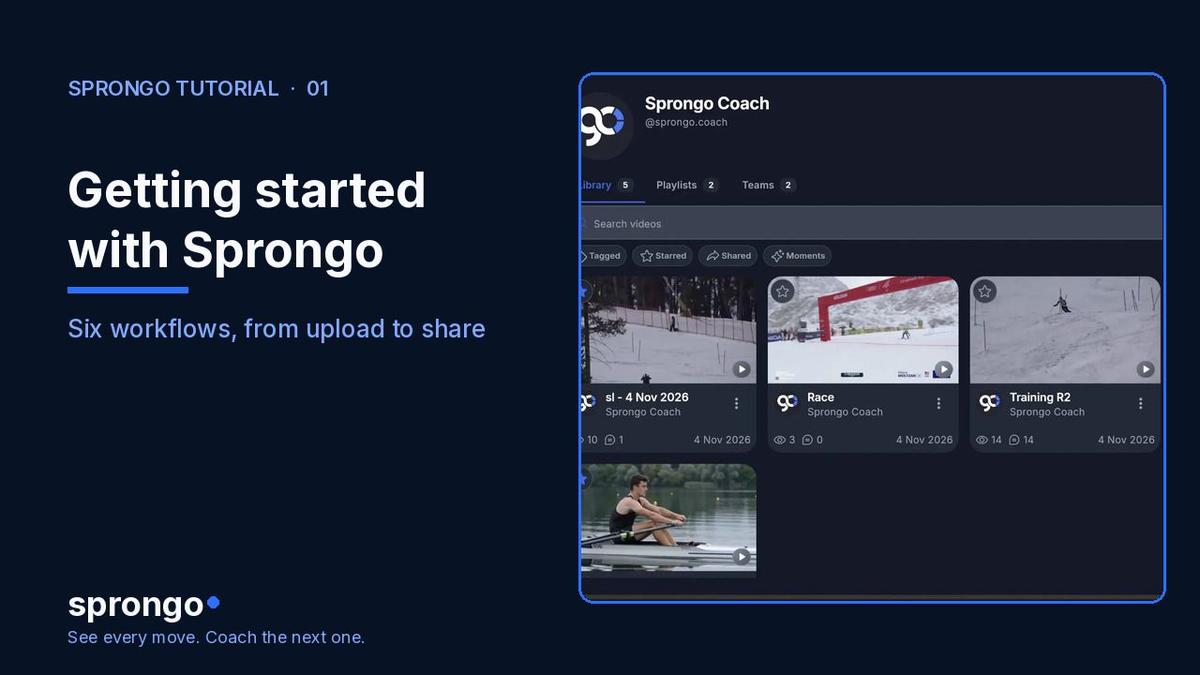
This is the last of three SIVA how-tos, after How to select a moment for SIVA and How to ask SIVA a focused question. For the fuller explainer, see What Is SIVA?. The wider loop is in Getting started with Sprongo: six workflows.
How to review the feedback
- Read SIVA's feedback in the panel beside the video. The question you asked stays with the answer, so you can see what you actually requested.
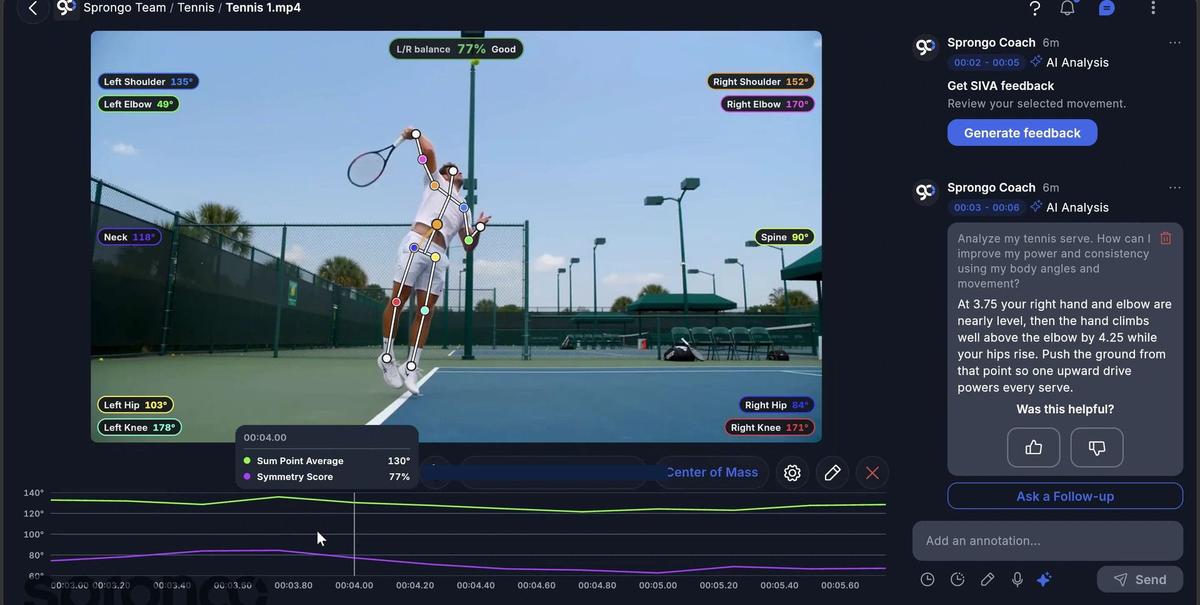
- Step to the moment the answer refers to. Use the playhead or the timeline so you are looking at the same phase the feedback describes, not a different second of the clip.
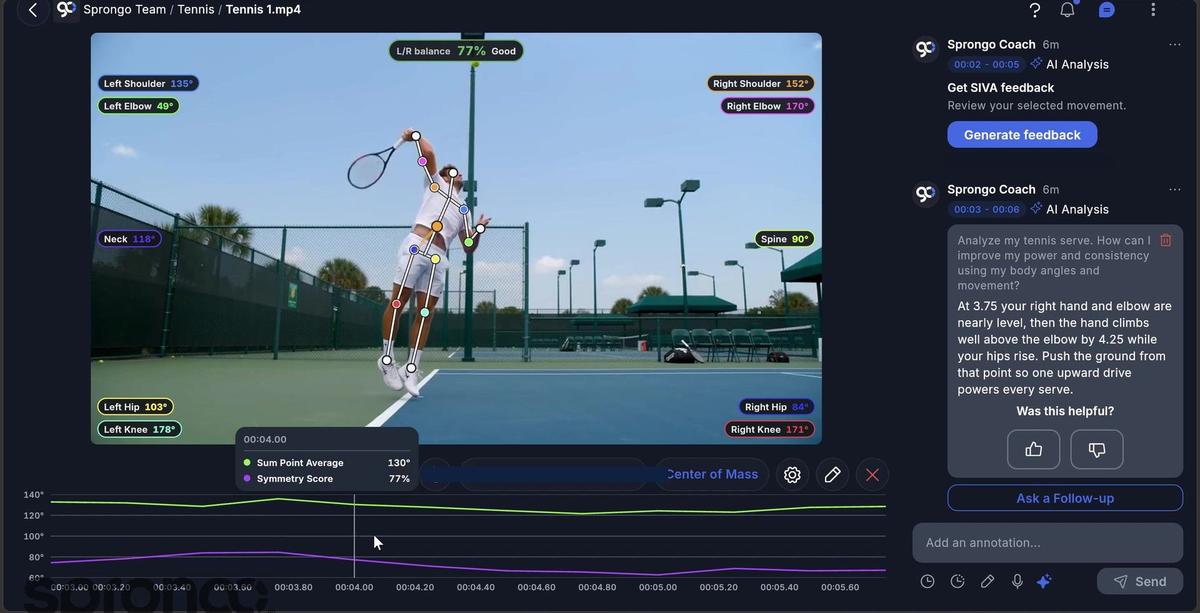
- Check the suggestion against what you see in the frame and in the joint tracking. If a tracked point looks wrong, fix it first; see How to adjust tracked pose points in Sprongo.
- If the feedback was useful, you can say so with the “Was this helpful?” control. Then share the clip and the cue with your athlete, or take one next check into the next attempt and compare the two runs.
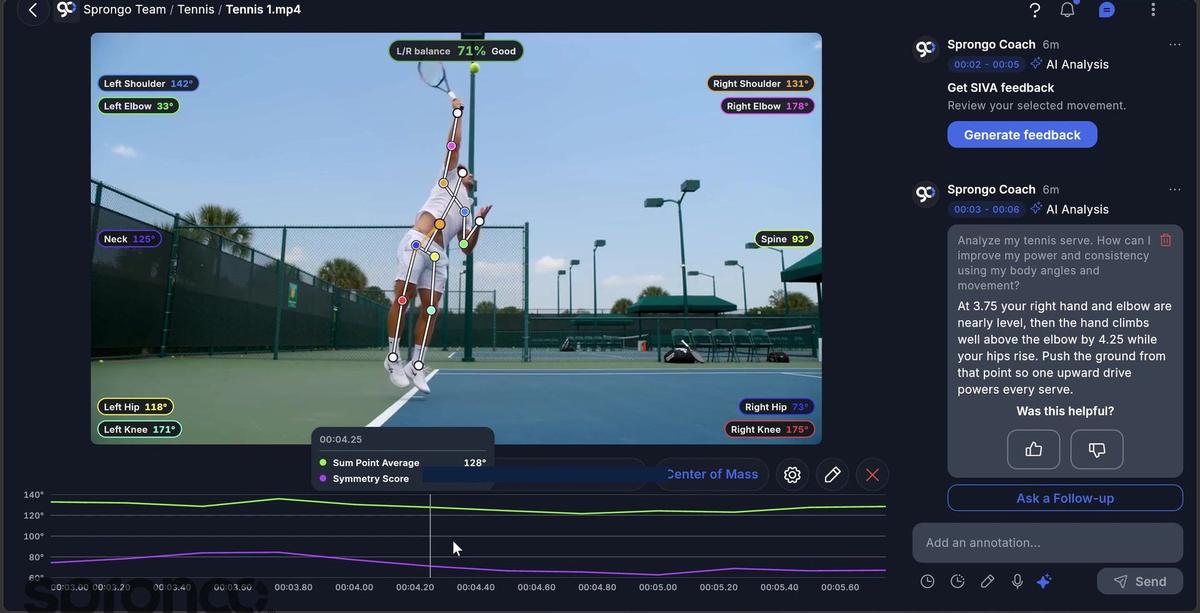
Treat the wording on the screen as SIVA's output for that clip, not as a promise from Sprongo. If it doesn't match what you see, trust the video and your own eye.
Frequently asked questions
Should I share SIVA's feedback as-is? Not until you have stepped to the moment and checked it. Share the clip and one clear cue, and keep the feedback attached to the footage so the athlete can see the same frame.
What does “Was this helpful?” do? It lets you tell Sprongo whether the answer helped. It is optional. It does not change the clip, and it is not a score for the athlete.
What if I disagree with the answer? That is a normal part of the workflow. SIVA suggests a focus; you decide whether it is the right one. You can ask a follow-up question about the same moment, or leave your own annotation instead.
Related guides
Getting started with Sprongo: six workflows · How to select a moment for SIVA · How to ask SIVA a focused question · What Is SIVA?
Review the next answer on the clip
Step to the moment, check it against the video, and take one cue into the next attempt.