Start with one video and one question
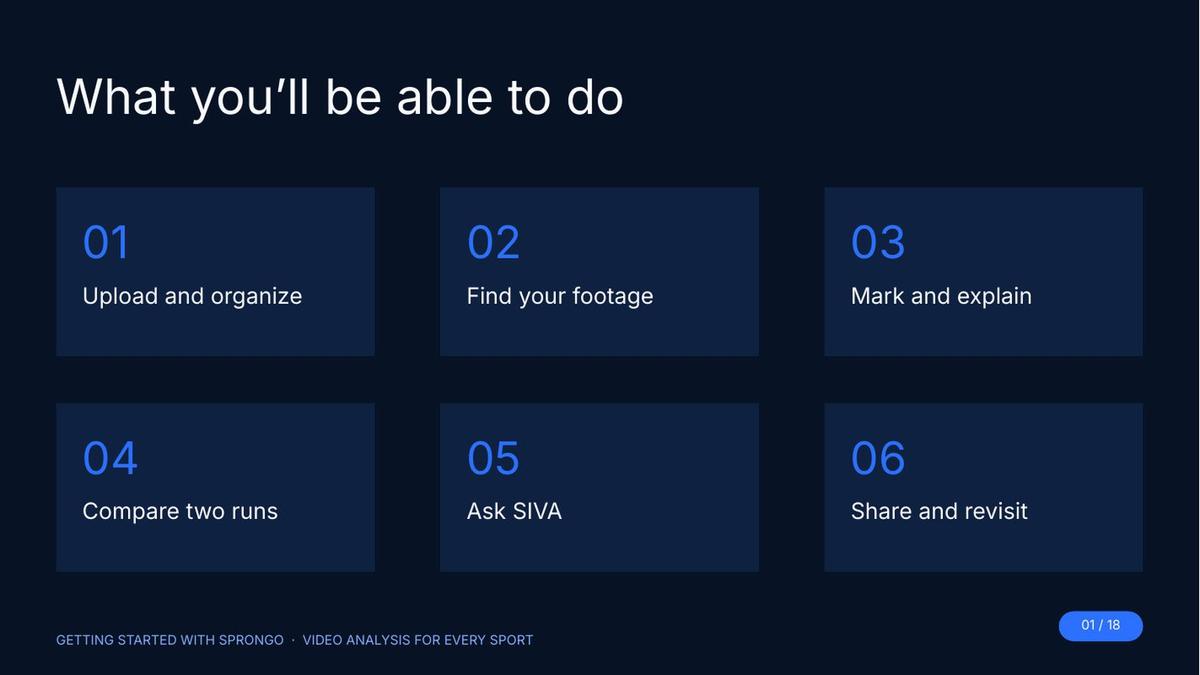
You filmed the run. Sprongo is where you find the moment that matters and turn it into one clear next step. This guide walks through six workflows: upload and organize, find your footage, mark and explain, compare two runs, ask SIVA, and share and come back to it.
The loop is the same in every sport: find it, explain it, compare it, and return to it. You don't need a lab or a special camera. A phone on a steady surface, with the whole movement in frame, is enough to get started.
Why it matters: coaches and athletes lose time when clips live in camera rolls, cues stay in a chat thread, and the next session starts from memory. Keeping the footage, the mark, and the feedback in one place means the next practice starts from a specific moment, not a vague note.
Before you start
- Use a video you have permission to use and share.
- Sprongo runs on the web and in the iPhone and Android apps. Some controls look a little different by device.
- Start small: one video, one moment, one question.
- Film from the side with the whole movement in frame. For camera setup by sport, see How to Film Your Sport for Video Analysis.
01. Upload and organize
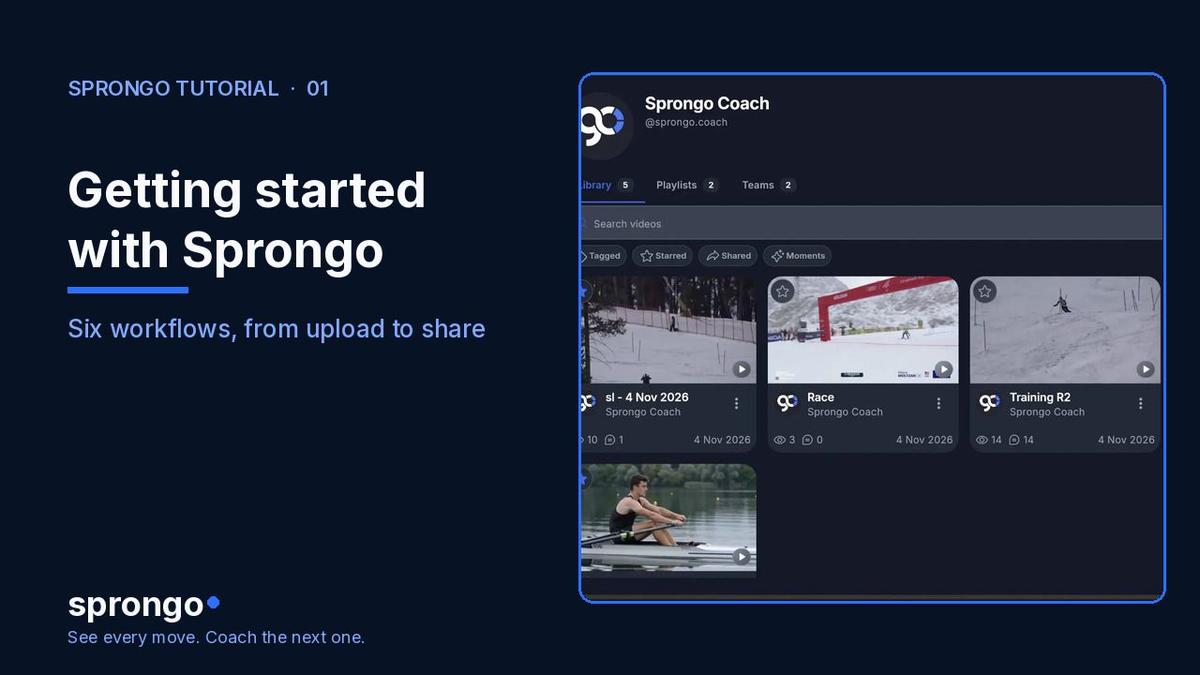
Upload one or more videos, put them in a playlist, and give them a clear title so you and your team can find them later.
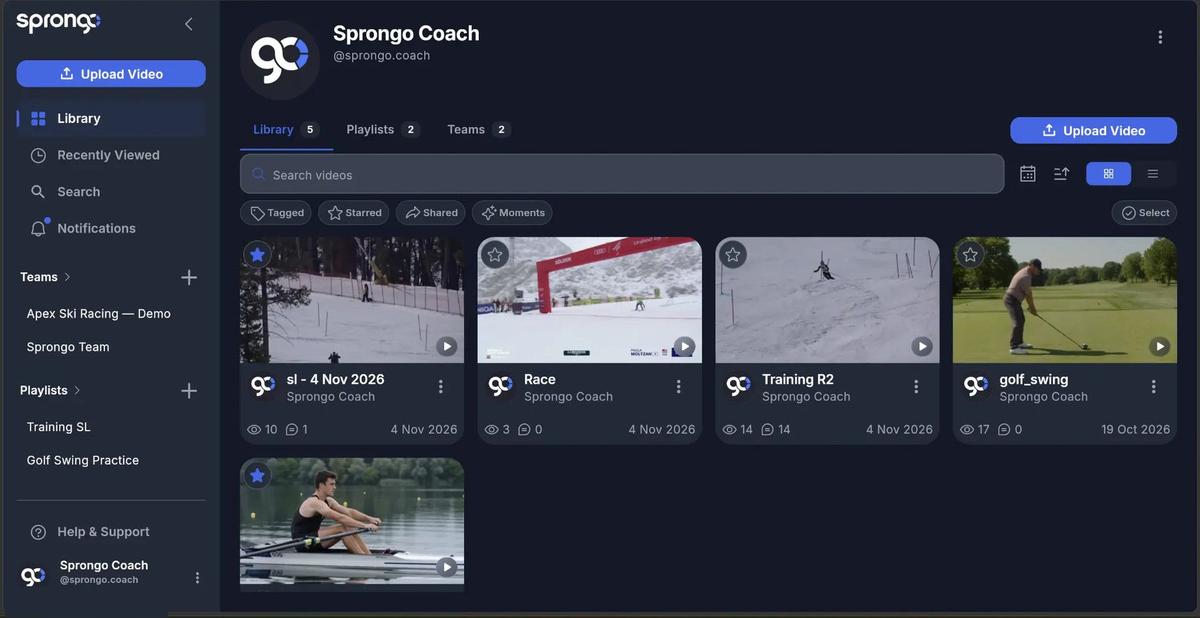
- Open your Library.
- Select Upload Video.
- Choose a playlist, or create a new one.
- Select one or more video files and finish the upload.
- Give the clip a title you will recognize later, for example “GS Training – Run 2” or “Serve block, 12 Nov”.
Playlists keep a session together. A good title at upload is what makes the clip easy to find next week.
02. Find your footage
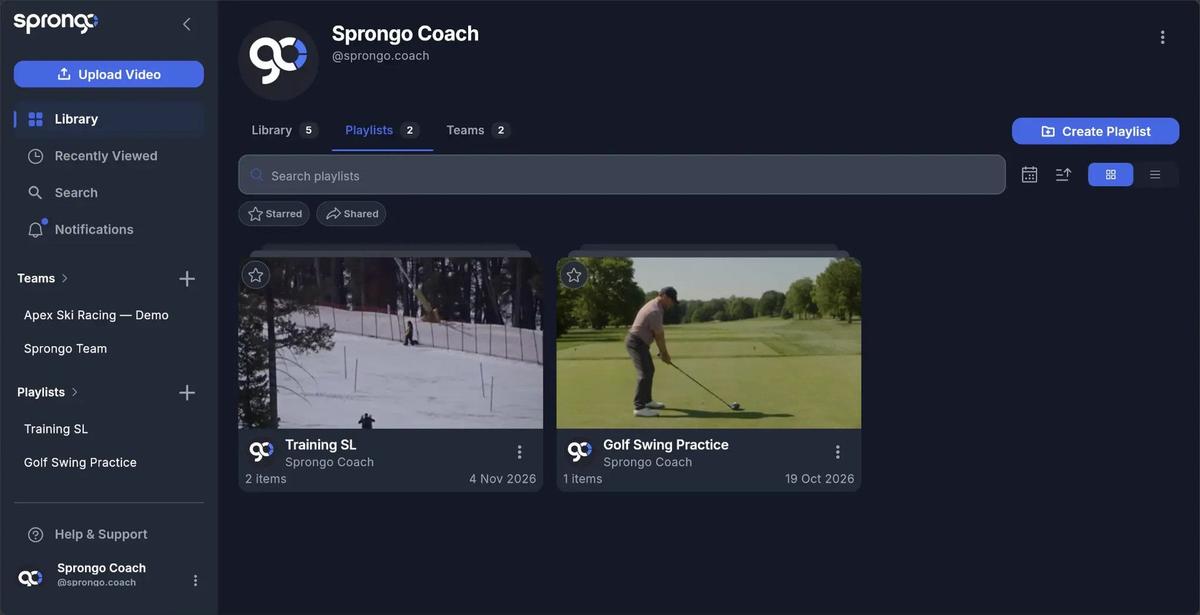
Go straight to the clip you need, without replaying the whole session.
- Open your Library, or start from Search in the sidebar.
- Type a keyword from the title, such as “GS training” or “serve”.
- Use the filters you see in the Library — Tagged, Starred, Shared, or Moments — to narrow the list.
- Open a team to see the videos shared with it. Recently Viewed is in the sidebar if you just had the clip open.
The more consistently you name clips at upload, the faster this step becomes.
03. Mark and explain
Show your athlete the exact moment you mean, and keep the cue with the footage.
- Open the clip.
- Slow playback with the speed control, then scrub to the exact frame.
- Add a time-stamped annotation so the comment sits on that moment. The review panel includes a field to add an annotation and send it with the clip.
- Keep it to one clear cue. For example: “At turn entry, your inside hand drops in this view.”
If drawing tools are available on the clip, use them to mark a line you want the athlete to see, then save. The point is the same: one moment, one cue, attached to the video.
04. Compare two runs
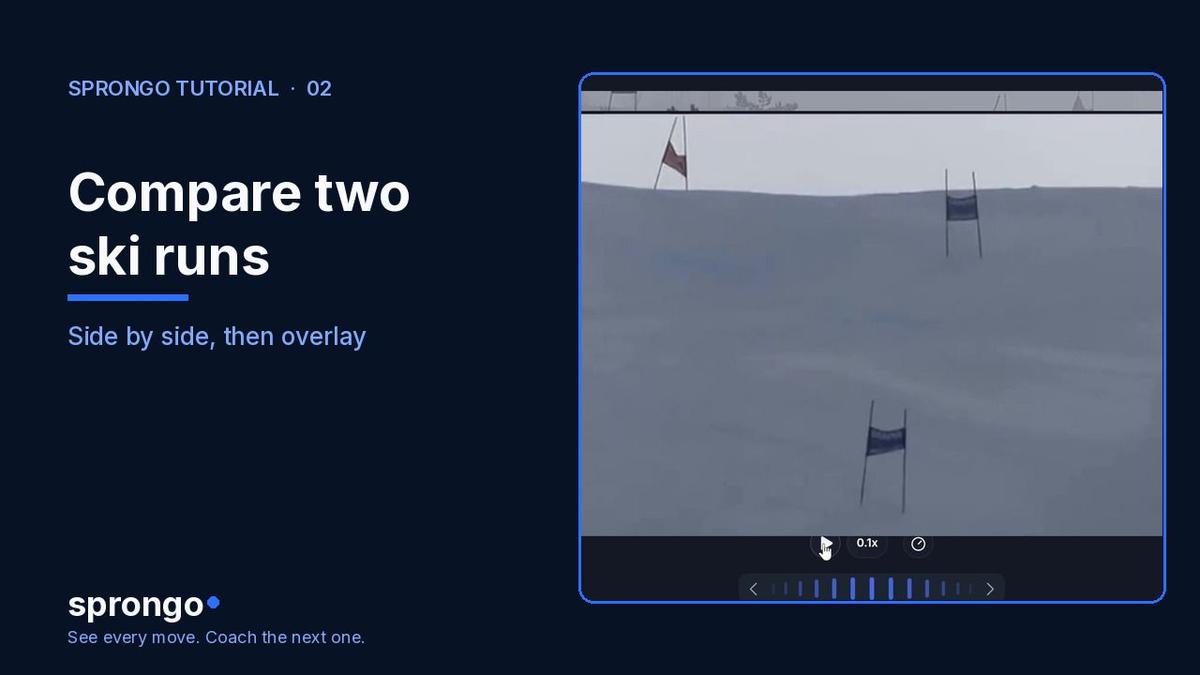
Pick two videos, play them side by side, line up the same phase, then switch to overlay to see what changed and what stayed the same.
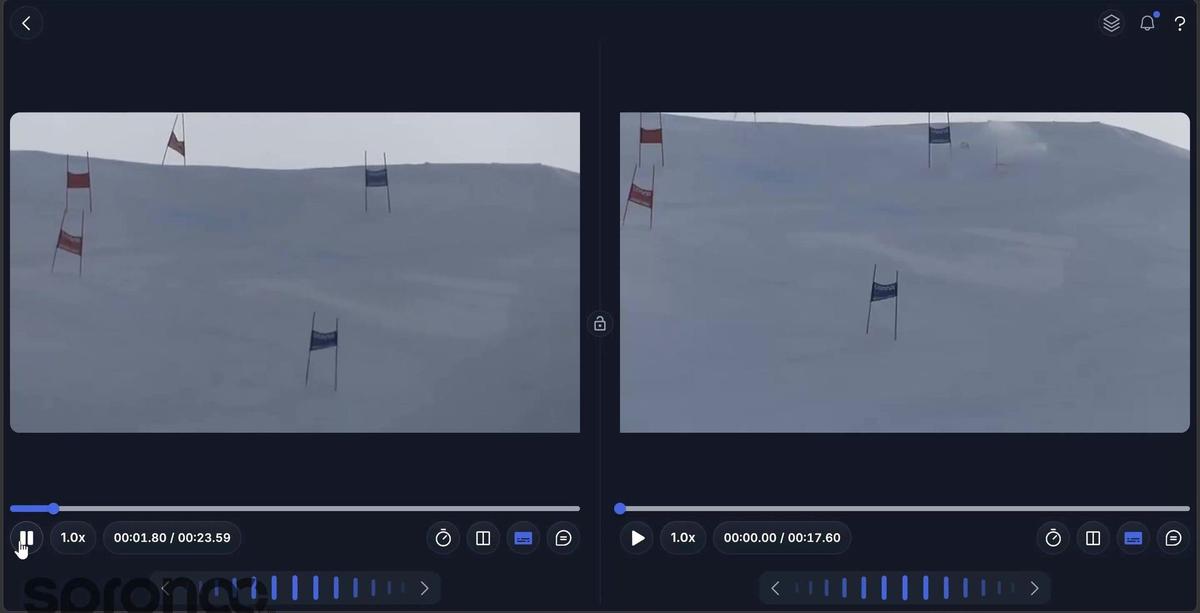
Ask three questions: what changed, what stayed the same, and what should we check next? For the full click-through, see How to compare two runs in Sprongo. For what to look at in a ski turn, see Ski Technique Video Analysis.
05. Ask SIVA
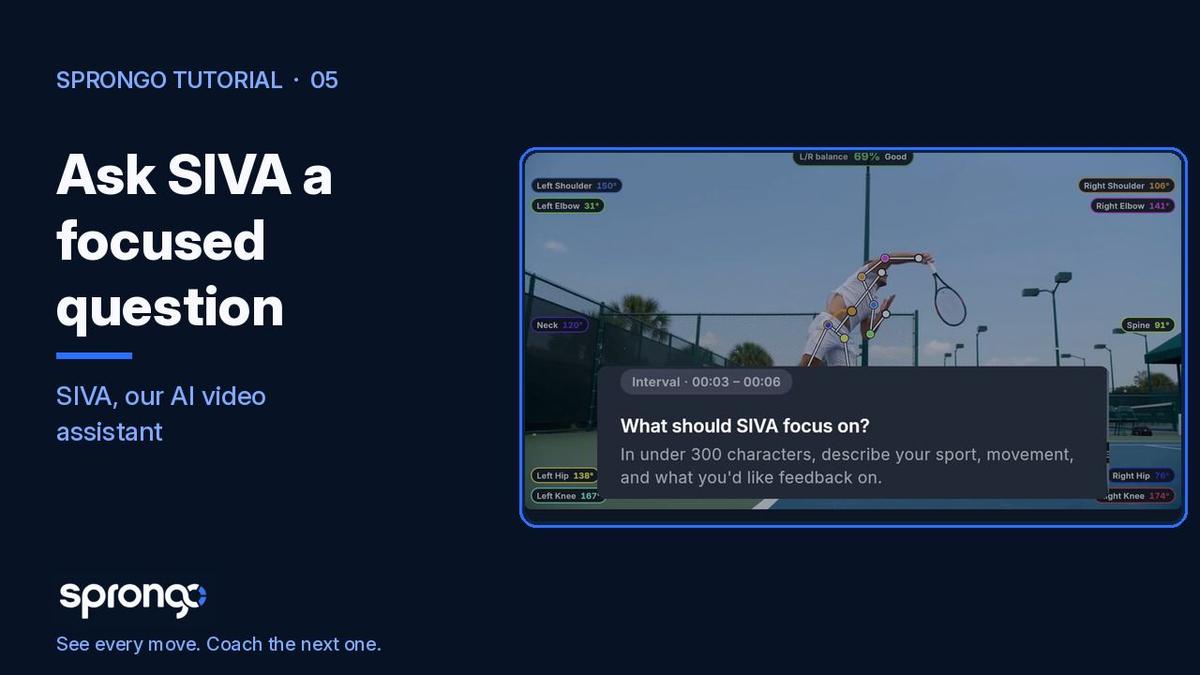
SIVA (Sprongo Intelligent Video Analytics) is Sprongo's AI video assistant, also called Sprongo's AI feedback feature. You select a moment, ask a focused question, and review the answer next to the video. Your coaching judgment stays in charge.
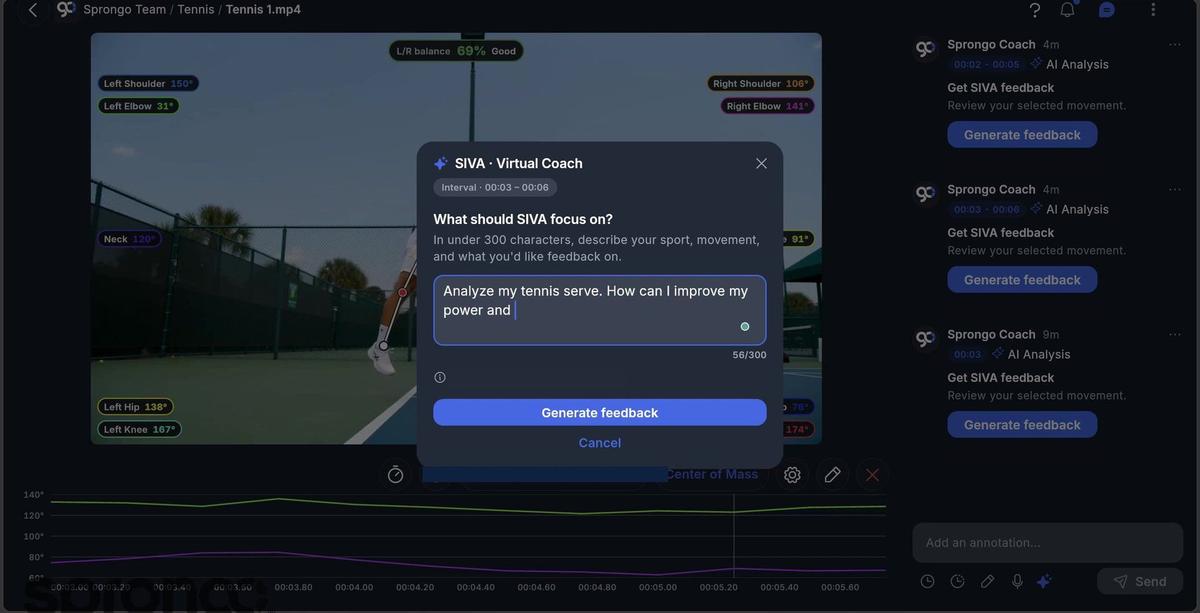
- Select the moment and, when you need it, draw a box around your athlete. See How to select a moment for SIVA.
- Tell SIVA your sport, the movement, and what you'd like feedback on, in under 300 characters. See How to ask SIVA a focused question.
- Generate the feedback, then check it against the video before you share it. See How to review SIVA's feedback.
A good first question is specific and small, such as “Look at my turn entry. What should I focus on next run?” For how SIVA works, and what it can and can't see, read What Is SIVA?.
06. Share and revisit
Share the exact clip and moment you mean, not the whole session. Keep the feedback with the footage, then come back to it before the next practice.
- Use the sharing options in your account to send the clip to your athlete or team.
- Star key clips so they show up under Starred in the Library.
- Reopen them from Starred, Shared, Search, or Recently Viewed when you plan the next session.
If a tracked joint landed in the wrong spot, you can drag it into place and save. See How to adjust tracked pose points in Sprongo.
The same loop in every sport
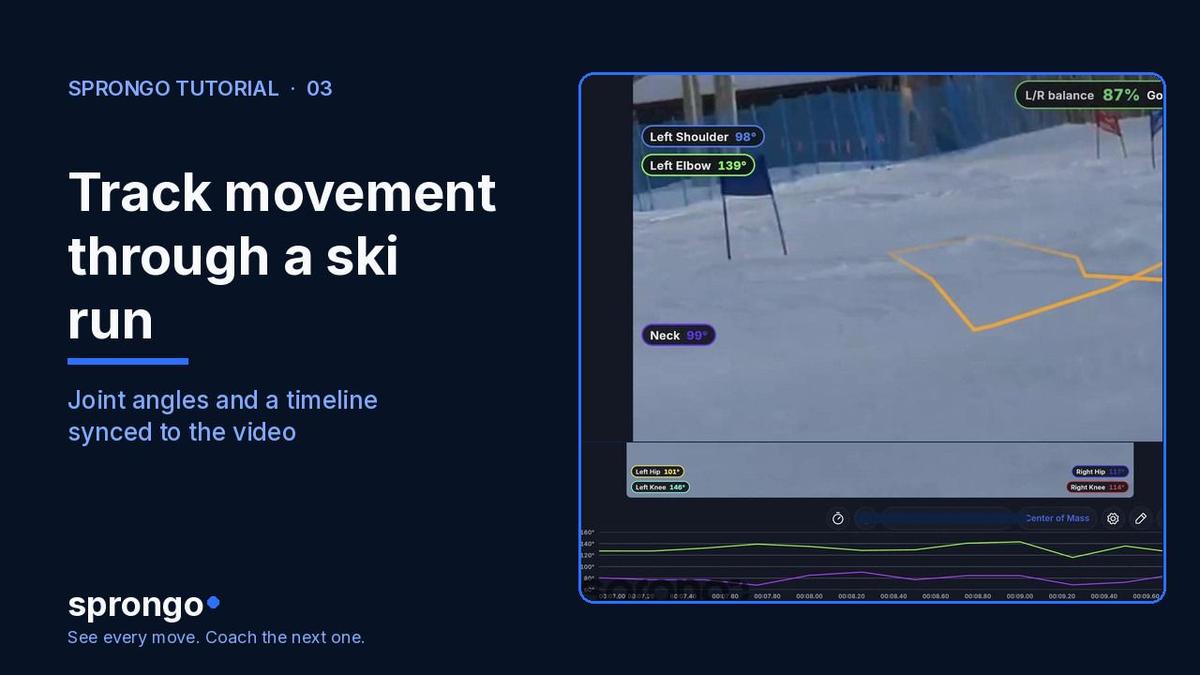
In skiing, film a training run from the side of the course, find the turn-entry frame, add one cue, compare it with a second run, and share the clip. Pose tracking and the timeline make that review easier; see How to track movement through a ski run.
In tennis, select the serve, ask SIVA about one phase, and compare it with the next serve. In basketball, find the release frame, mark the hand and ball line, and leave one time-stamped cue. The tools stay the same. The sport changes.
Frequently asked questions
Does this work for my sport? Yes. Playback, comparison, and feedback are built for any sport you can film. The examples in this series are skiing, tennis, and a field event, but the six workflows do not depend on a single sport.
Should I start on the web or in the app? Either. Sprongo runs on the web and on iPhone and Android. Some controls look a little different by device, but the Library, playlists, comparison, and SIVA sit in the same workflow.
Where should I start if I only have ten minutes? Pick one video and one question. Upload it, scrub to the moment, and either leave one cue or ask SIVA about that moment. Don't try to organize a whole season on the first day.
What is SIVA? SIVA is Sprongo's AI video assistant. You pick a moment, ask a focused question, and review the answer next to the clip. What Is SIVA? explains how it works.
Start with one video
Find the moment, explain it, compare it, and come back to it. See every move. Coach the next one.